
Arrange selected cards into a grid, a row, or a column
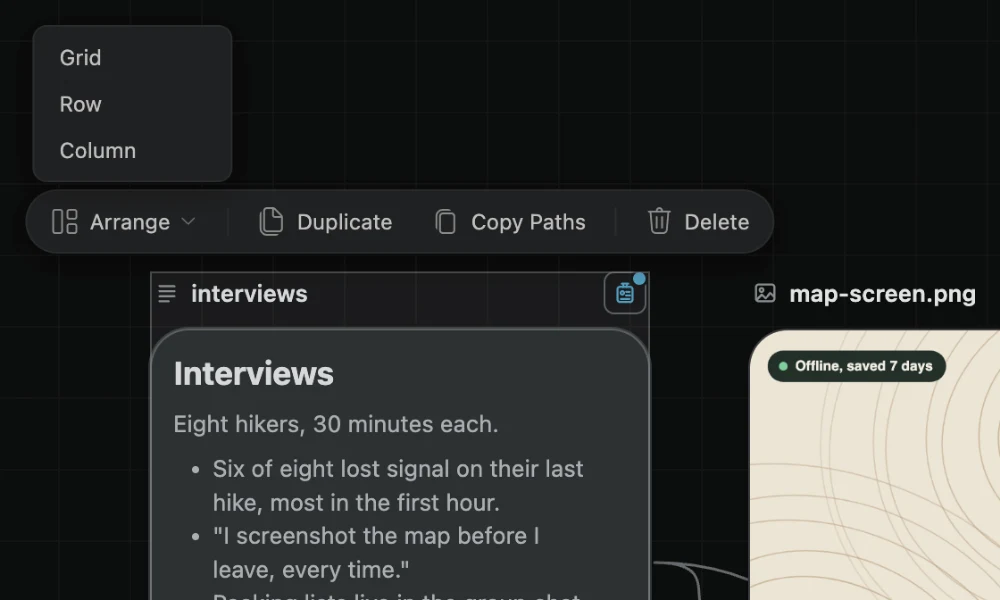
Select two or more cards on a BaseHalf canvas to get a set toolbar. Arrange lines them up as a Grid, Row, or Column without tidying the whole canvas.
Two or more selected cards make a set. The set has its own toolbar, and Arrange is the first item on it.
How to make a set
Click a card to select it. Shift-click adds a card to the selection or takes one out.
Drag a box from an empty part of the canvas to select every card it touches. Hold Shift to start a box on top of cards, which helps on a crowded canvas.
Once two or more cards are selected, they move as one when you drag them.
What Arrange does
The set toolbar has Arrange, with Grid, Row, and Column. Arrange moves only the cards you selected, in one change of the layout. The rest of the canvas stays where it is.
That is different from Tidy Canvas. Tidy is the first of the view controls at the lower left of the canvas, and Shift+Alt+F does the same. Tidy lays out every card on the current canvas along its connections, then asks Keep this arrangement?, with Revert and Keep. Arrange lines up the set you picked. It does not tidy the whole canvas.
The rest of the toolbar
The same toolbar also has Duplicate, Copy Paths, and Delete. They act on the set you selected.
One undo step
Moving a set, arranging it, and tidying are each one undo step. BaseHalf moves cards only when you ask.
Use Arrange when a few cards should sit in a grid, a row, or a column, and the rest of the canvas should stay put. The canvas and cards docs describe selecting and arranging in one place.