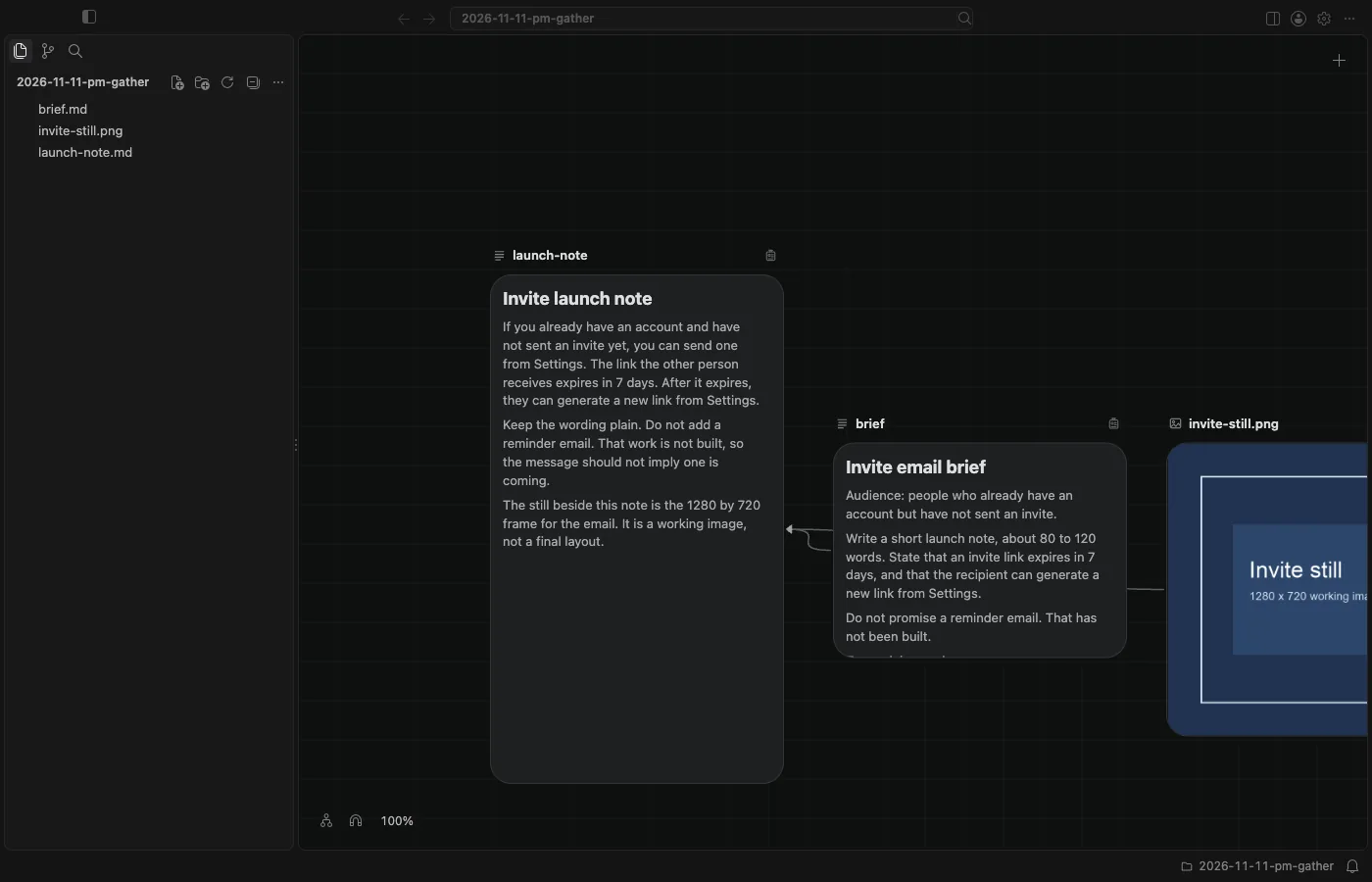
Drop files onto the canvas to add them
Drop files onto a BaseHalf canvas, or use Import files, and they become ordinary files in the folder, each with its own card.
I had a short invite brief and a 1280 by 720 still sitting outside the project. I needed both in the same folder so I could write a launch note that stayed connected to them.
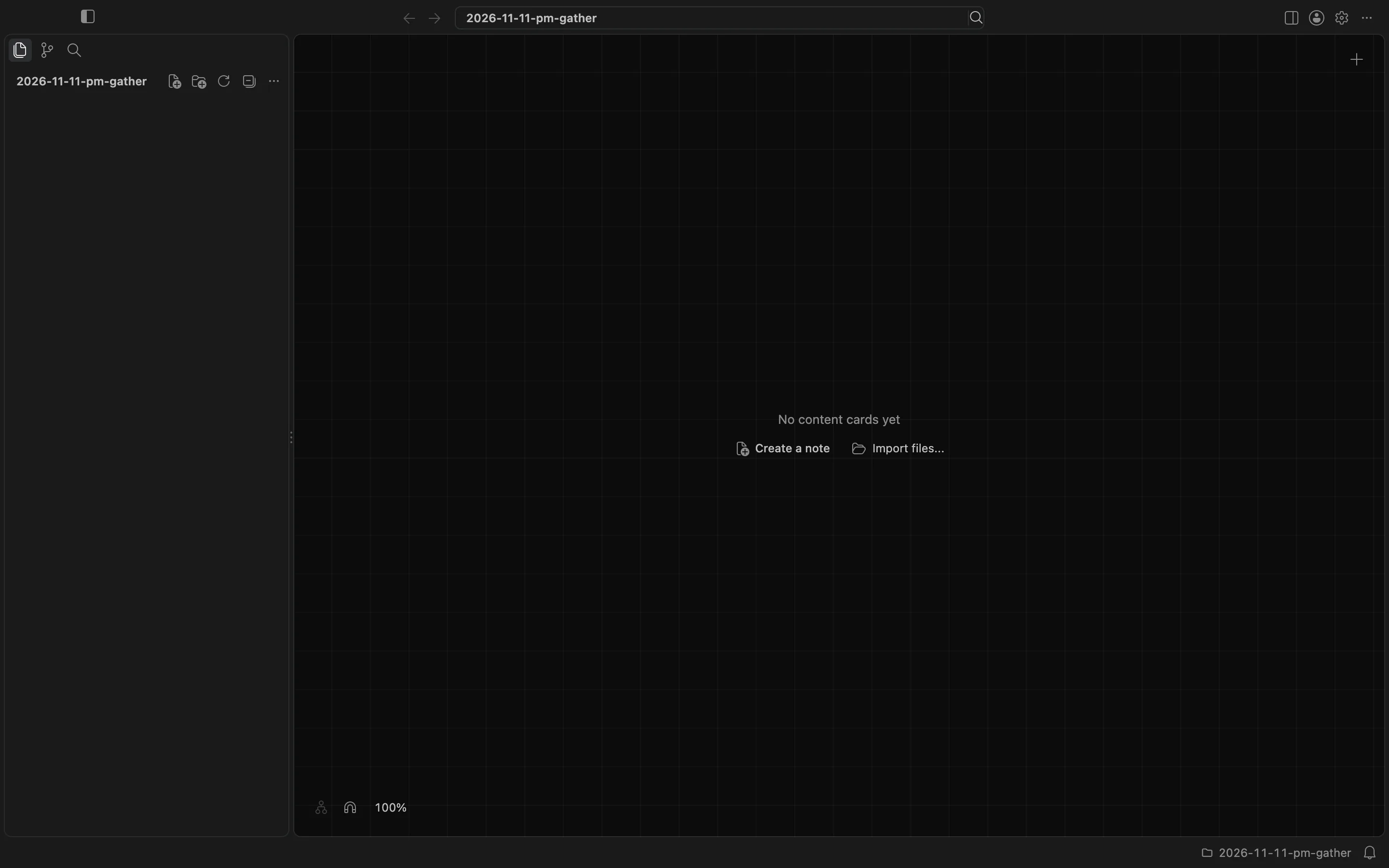
I opened the folder as a canvas. It was empty, with the line "No content cards yet", and two actions in the middle: Create a note, and Import files...
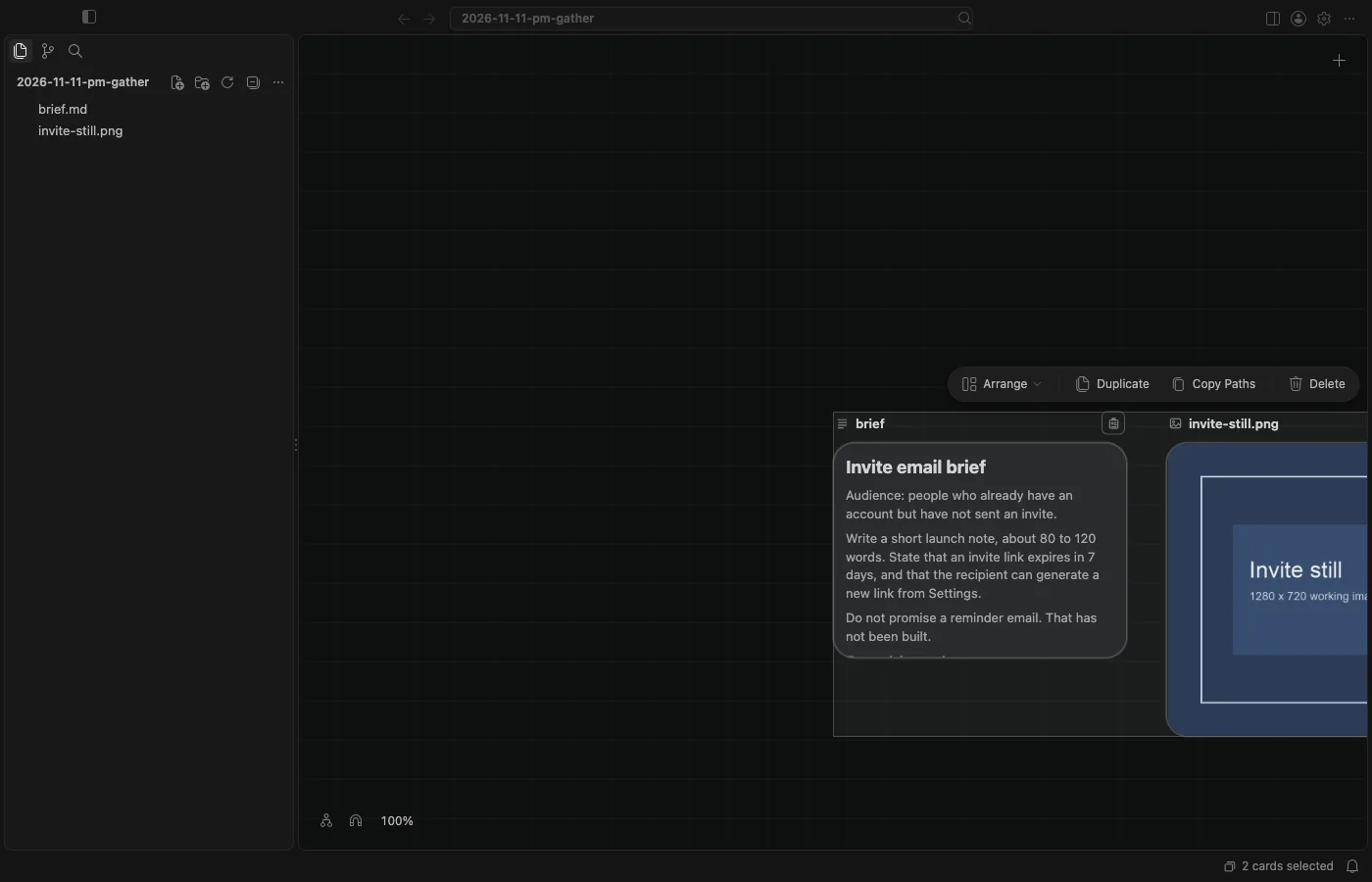
I chose Import files..., picked brief.md and invite-still.png in the Import Files dialog, and clicked Import. Both files were copied into the folder. The originals outside it were still there. Each one appeared in the sidebar and as a card: the Markdown brief, rendered on its card, and the still, in the shape of its picture.
Dropping files onto the canvas adds them to the folder the same way. Files that come from outside the window are copied. Items you cut within this folder move instead. If you drop onto a folder card, the files go into that folder, not onto the canvas you are looking at.
Import Files... is also in the create menu, next to New Note, New Image, New Video, New Audio, New Folder, and Paste. New Image, New Video, and New Audio make generation drafts. They do not import a file you already have.
I then made a launch note in the same folder, listed brief.md and invite-still.png in its upstream, and wrote the short message from the brief. Lines appeared from those two cards into the note. The three files are ordinary files on disk, and the connections stay with them.