
Trim a video in Card Detail
Trim a video in BaseHalf Card Detail. The file keeps its name and its card, and undo puts the whole video back.
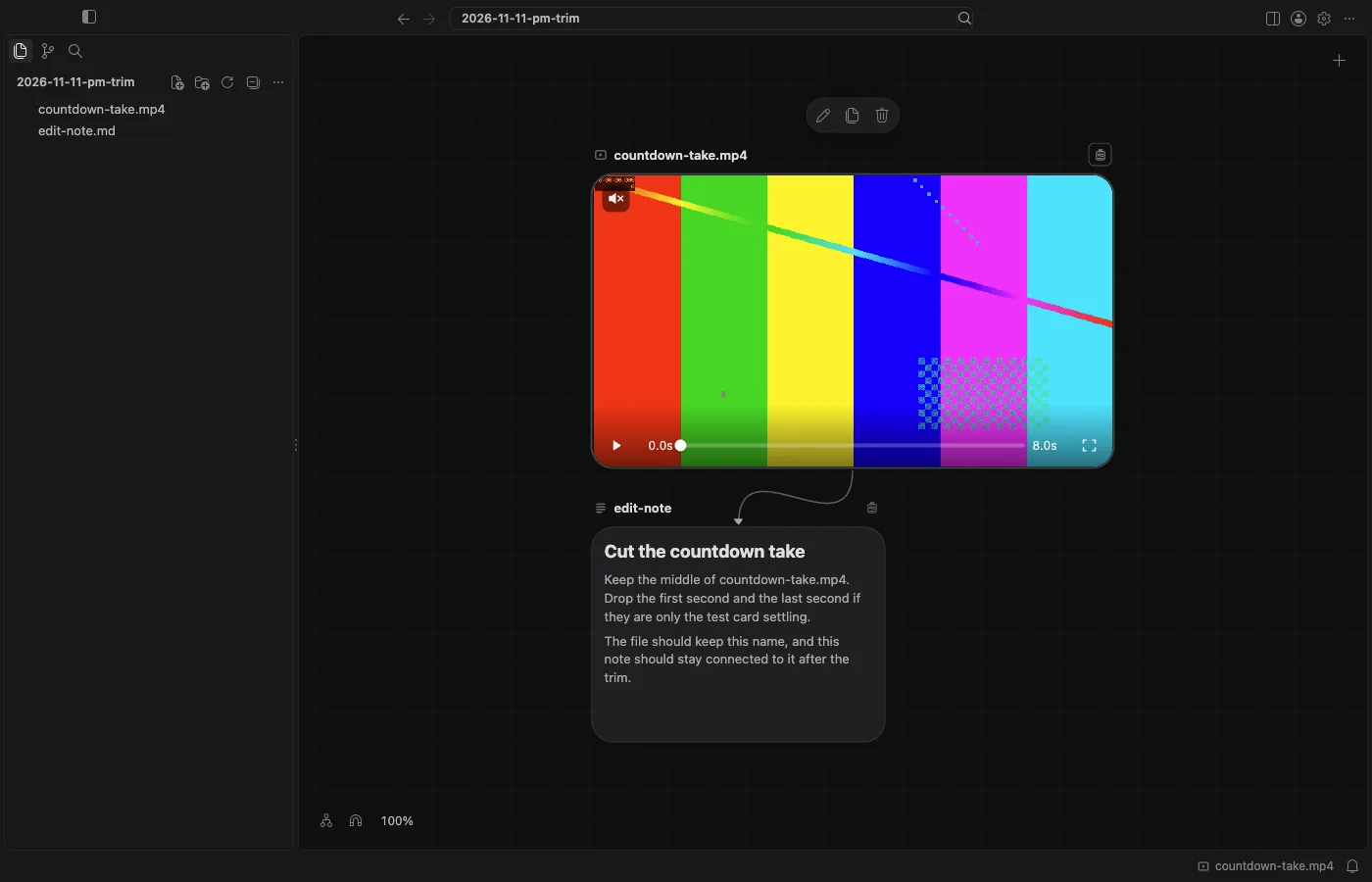
I had an 8 second take, countdown-take.mp4, and a note already connected to it. The note said to keep the middle and drop the first second and the last. I needed a shorter file under the same name, with that note still pointing at it.
A video opens in Card Detail when you double-click its card, anywhere but its name. The breadcrumb showed the folder, then countdown-take.mp4. Under the player there is a trim bar for the whole 8.0s.
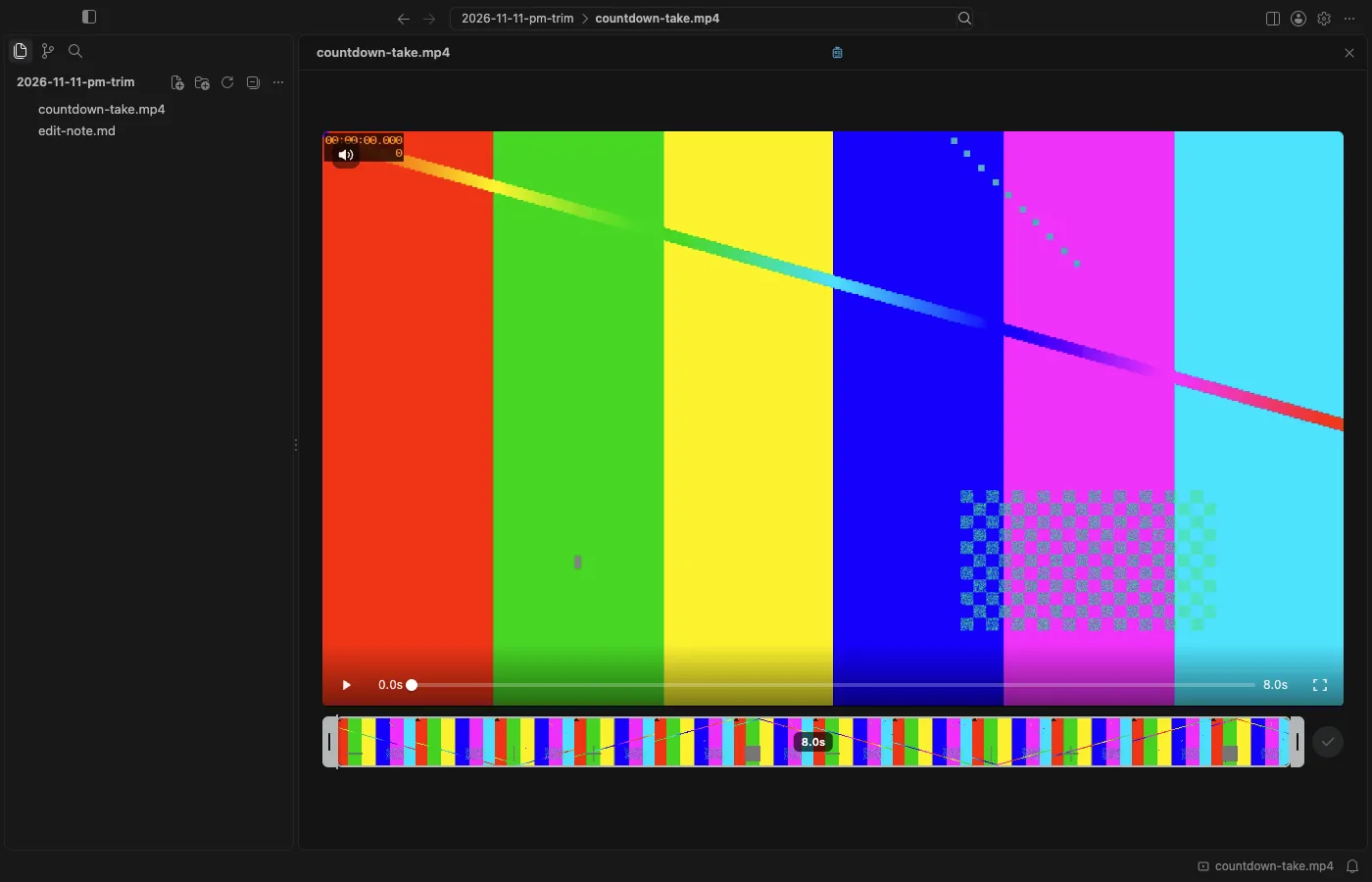
The confirm button starts disabled, with the hint "Choose a part of the video first." I dragged the start handle to 0.9s and the end handle to 7.0s. The bar showed a length of 6.1s, and the button was enabled, labeled Trim.
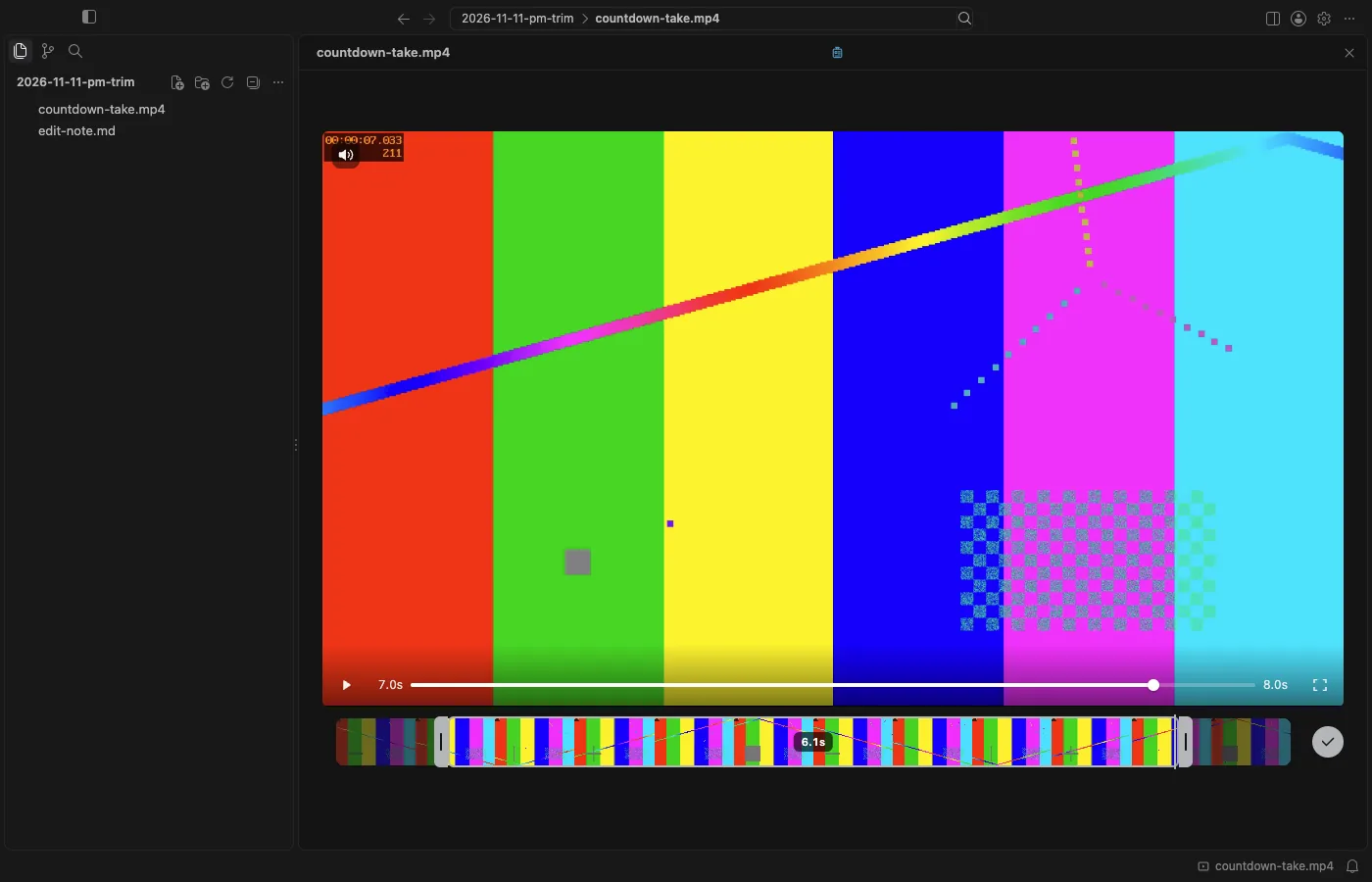
I clicked Trim. The file on disk was still countdown-take.mp4, now 6.1 seconds long. There was no second file with a new name. The card and the note's upstream were unchanged. A line under the bar said "Trimmed to 6.1s. ⌘Z puts the video back."
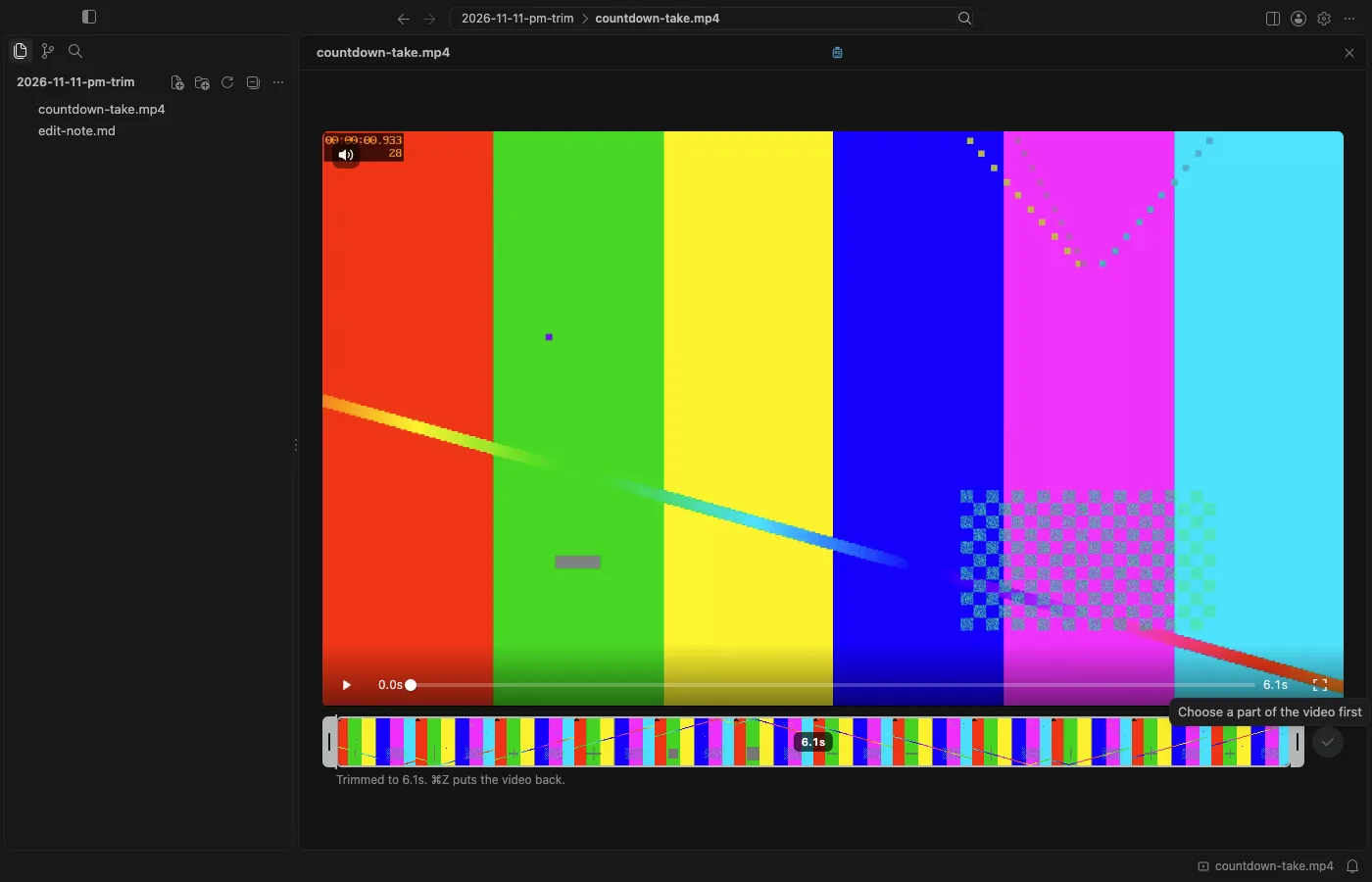
Command-Z restored the original 8.0 second file, under the same name. The note was still connected. On the canvas, the card was still countdown-take.mp4, still 8.0s, with the line to edit-note still in place.
Card Detail is not always an editor. For a video, it is where you watch it and trim it. For a note, it is a place to edit or preview the Markdown. For a PDF or a book, it is a reader.
This was in BaseHalf 0.6.0: I chose a range, then confirmed with Trim.